
Beginner guide
How to Use the Choicer Voicer Dub Pack Editor
Upload Your Video
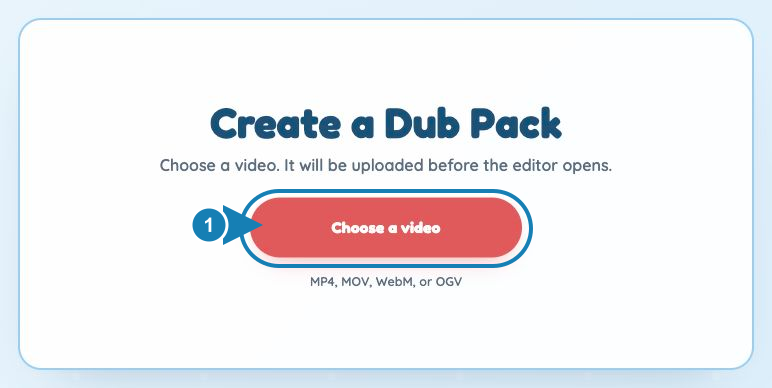
Start a new project in the Choicer Voicer Dub Pack Editor by clicking Choose a video. Upload an MP4, MOV, WebM, or OGV file up to 500 MB and no longer than 5 minutes. The video uploads before the workspace opens, so keep the page open until it finishes.
Create Clips Automatically
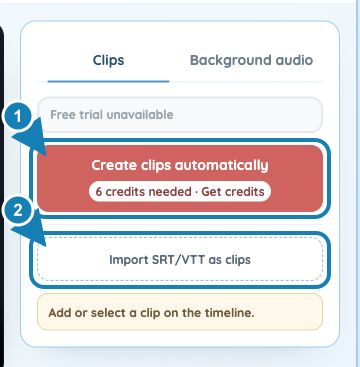
To learn how to mod Choicer Voicer faster, open the Clips tab and select Create clips automatically. The editor processes the dialogue and adds timed clips to the timeline. Sign-in is required, and the current Credit cost appears before processing begins. If your video already has subtitles, you can import an SRT or VTT file instead.
Review Characters, Captions, and Timing
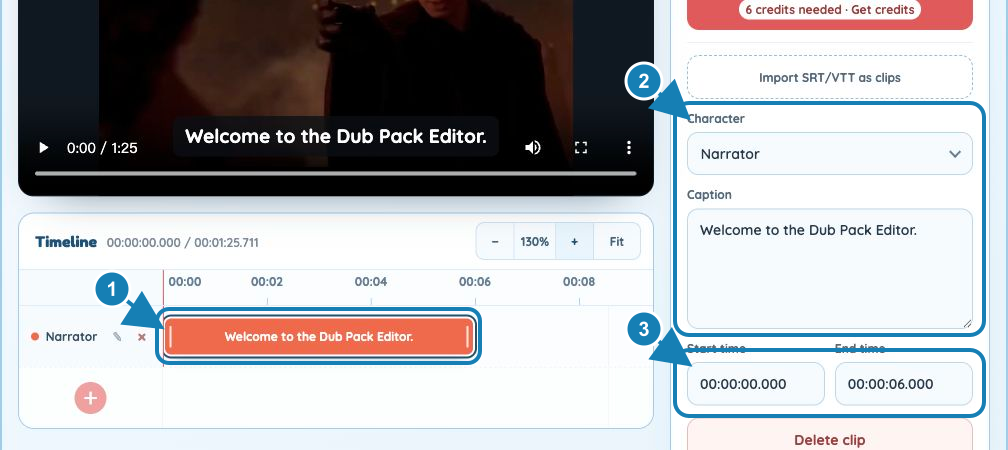
Automatically generated clips still need a quick review. Select each clip on the timeline, confirm its Character and Caption, then correct the Start time and End time. You can drag or resize a clip to match the spoken line. The visual timeline makes Choicer Voicer modpacks easier to check before export, especially when several characters speak close together.
Generate Background Audio Automatically
Open the Background audio tab and select Extract background audio. The cloud tool automatically generates a separate background-audio track from the uploaded video. Sign-in is required, and the current Credit cost appears before processing begins. For Choicer Voicer Dub Mode Packs, this avoids preparing a separate audio file by hand. If you already have a background track, select Import background audio instead.
1 Automatically extract background audio2 Import existing background audio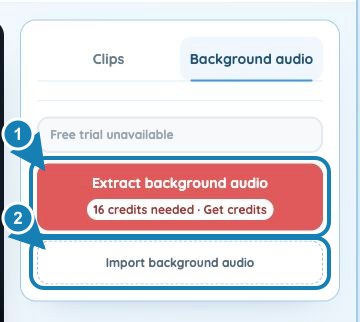
Check and Export Your Pack
Select Export Pack to open Pack check. Confirm the Pack title, creator name, video duration, character count, clip count, and background-audio status. Fix any issues the check reports before exporting. Choose Export in cloud for cloud processing up to 500 MB, or Export in browser for files up to 150 MB. Keep the page open until a browser export finishes. Before sharing The Choicer Voicer mod packs, load the downloaded Pack in the game and test the full scene.
1 Review Pack details2 Export in cloud3 Export in browser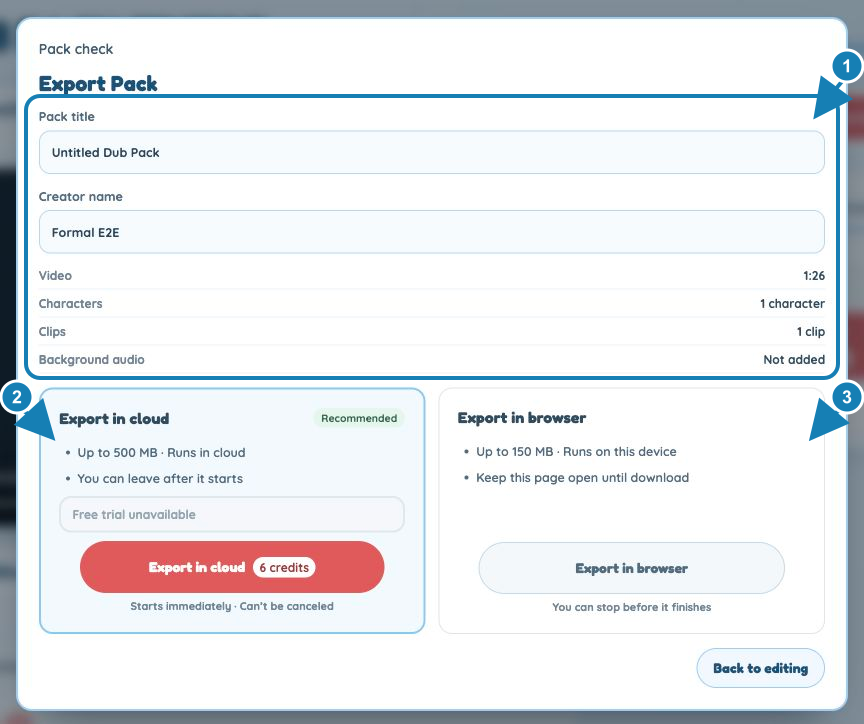
Three workflows
Choose How to Create Clips for Choicer Voicer Mod Packs
The editor gives you three ways to create dialogue clips. Choose the method that matches the material you already have, then review the result on the same visual timeline.
| Method | Best for | What to review |
|---|---|---|
| Create clips automatically | Getting a fast starting point from uploaded video | Review every caption, character, and time range. Sign-in is required, with the current Credit cost shown before processing. |
| Import SRT/VTT as clips | Videos that already have a subtitle file | Check subtitle boundaries, assign the correct characters, and adjust lines that start early or late. |
| Create clips manually | Short scenes or projects that need precise control | Add a character track, create each clip, then enter its caption and timing. Manual timeline editing remains free. |
Start with the method that fits your source. You can correct every result on the timeline, so a fast first pass does not lock the final Pack. This flexibility makes the editor useful as a visual Dub Pack Maker for Choicer Voicer custom packs.
Continue later
Save Your Dub Pack Editor Project
Projects for The Choicer Voicer modpacks do not have to be finished in one session. The editor saves your changes as a local draft in the same browser, including the Pack title, characters, captions, and timing.
Uploaded videos are retained for 24 hours. If the uploaded video expires, your local draft remains, but you will need to upload the source video again before continuing. Use the same source file so the existing clip timing still matches the scene.
The Pack title can be changed from the workspace bar at any time, so you can begin with a temporary title and rename the project before export.
Know before you run
Manual Editing, Cloud Features, and Credits
You can edit a Choicer Voicer mod pack manually without signing in. Add characters and clips, edit captions, adjust timing on the timeline, import SRT or VTT subtitles, and save the project as a local draft.
Cloud features require sign-in and may use Credits. These features include automatic clip creation, automatic background-audio processing, and cloud export. The editor displays the current Credit cost before a paid task begins, so you can decide whether to continue.
Credit requirements can vary by task and video. The page should not promise a fixed price or processing time. If you prefer to avoid a cloud task, you can continue editing manually and use browser export when the project meets its size requirements.
Check the current plans and Credit options on the Dub Pack Editor pricing page before using a paid cloud feature.
Pre-export review
What Pack Check Reviews Before Export
Pack Check reviews the project data before you choose an export method. It checks for:
- A Pack title and creator name
- A valid source video
- Characters and dialogue clips
- Empty captions or unnamed characters
- Invalid start and end times
- Clips that overlap on the same character track
- The current background-audio status
Fix each reported issue before exporting. Pack Check can validate the information stored in the editor, but it cannot guarantee how the finished Pack will play in the game. Load exported The Choicer Voicer Dub Mode Packs in Choicer Voicer and watch the full scene before sharing them.
Common questions
Dub Pack Editor FAQ
How do I make a Pack with the Choicer Voicer Dub Pack Editor?
People searching for “choicer voicer how to make packs” can follow the five-step guide above: upload a video, create clips automatically, review the characters and timing, generate background audio, then run Pack Check and export. You can also replace automatic clip creation with manual editing or an SRT/VTT import.
Does the Choicer Voicer Dub Pack Editor modify the game?
No. The search phrase “choicer voicer how to mod” usually refers to creating a custom Dub Mode Pack. The editor prepares the video, characters, captions, timing, and optional background audio for the Pack. It does not download, patch, or alter the base game.
Can the Choicer Voicer Dub Pack Editor create custom Voice Packs?
Generally, yes. Choicer Voicer custom voice packs and Dub Mode Packs are compatible, so a Pack exported from the editor can normally be used as a custom Voice Pack. Test the exported Pack in Choicer Voicer before sharing it to confirm that the video, clips, characters, and background audio work as intended.
Should I use the Choicer Voicer Dub Pack Editor or the manual guide?
People searching for “the choicer voicer how to make packs” may need either workflow. Use the editor when you want a visual timeline, automatic tools, Pack Check, and guided export. Read the manual Dub Pack structure when you want to understand the files and data inside a Pack.
Start your project
Ready to Make a Choicer Voicer Dub Pack?
Use the Choicer Voicer Dub Pack Editor above to upload your video and start creating clips. If you want to study the Pack format first or find a finished Pack, browse the Choicer Voicer Dub Packs guide.